
How to start trading
Once you’ve gained access to your dashboard and received your EasyVPS credentials, you’re ready to start trading.
Here’s a step-by-step tutorial video to help you:

If the video doesn’t cover your needs, follow the step-by-step breakdown below:
1. Access your EasyVPS
- Log in to your EasyVPS server.
If you do not know how to do that, please check the ‘How to access your EasyVPS’ article
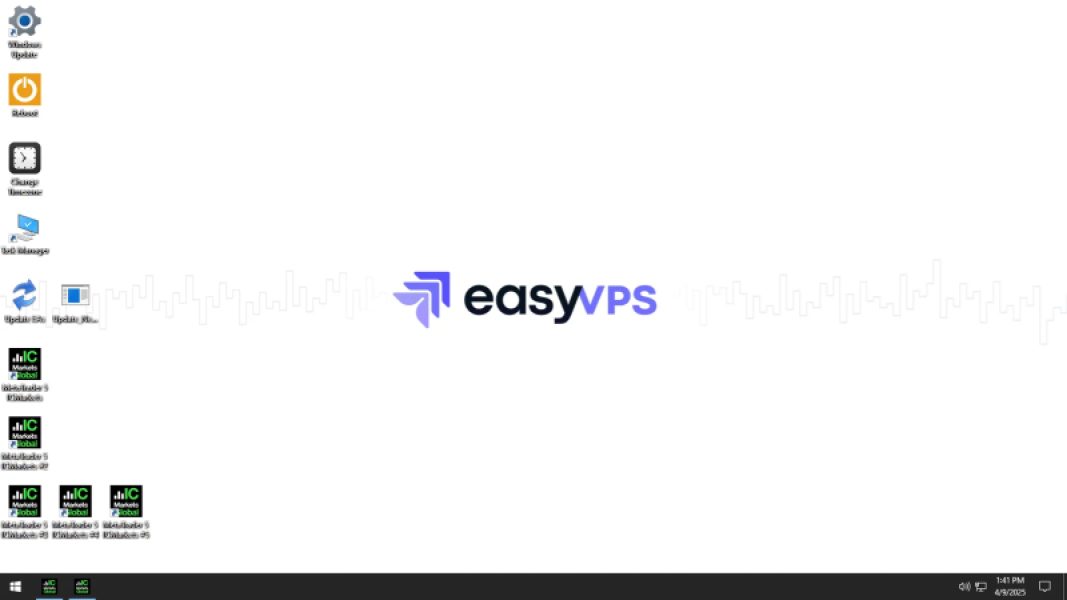
2. Open your broker’s MT5 terminal
- Launch the MetaTrader 5 (MT5) platform.
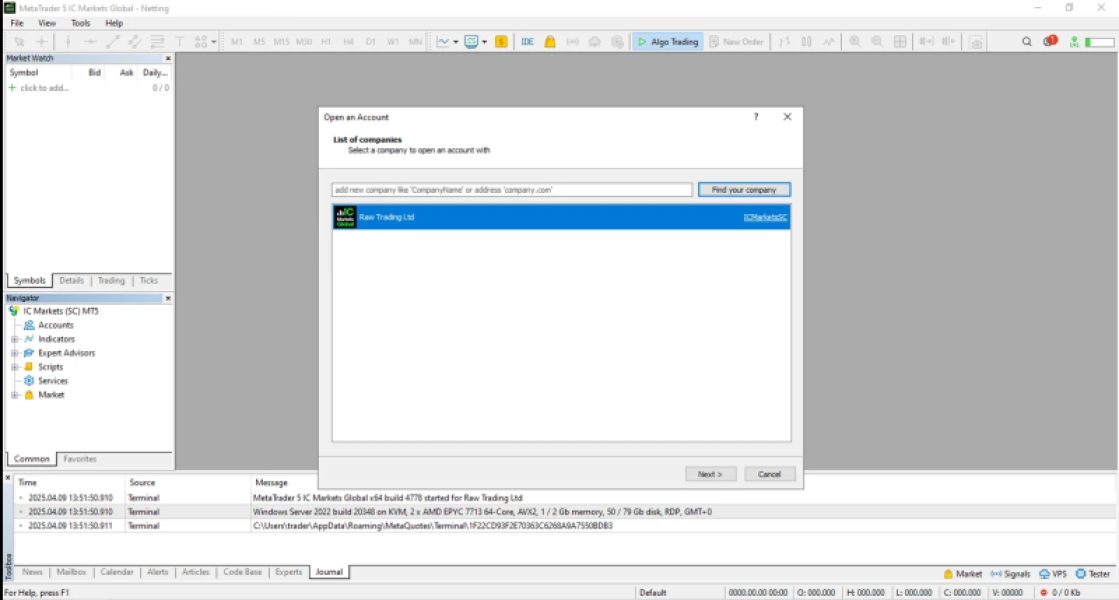
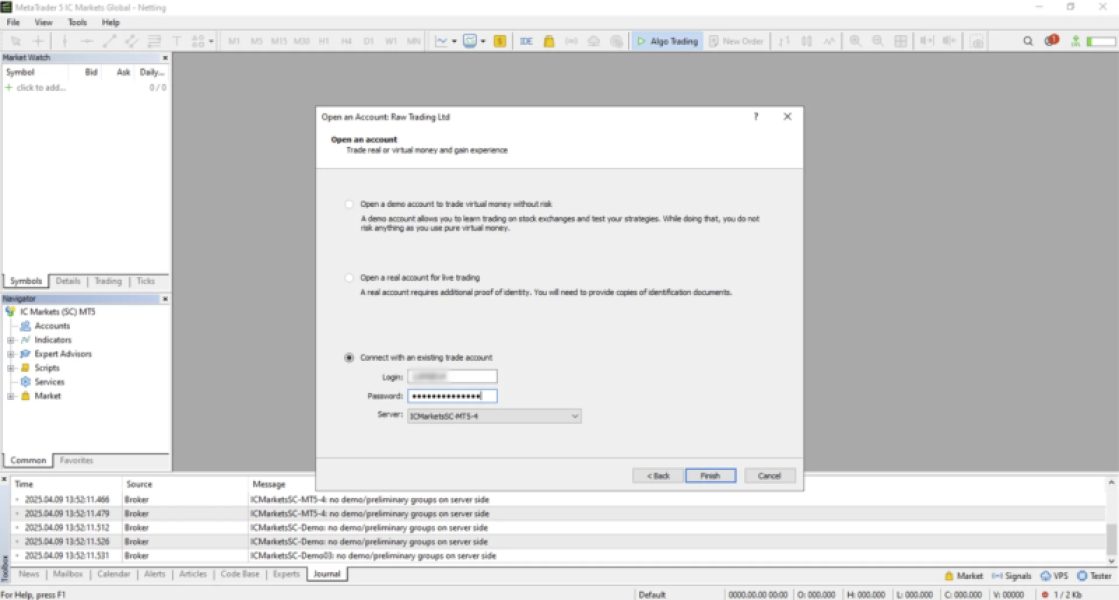
3. Log in to your MT5 account
- Use your broker credentials to access your broker accounts.
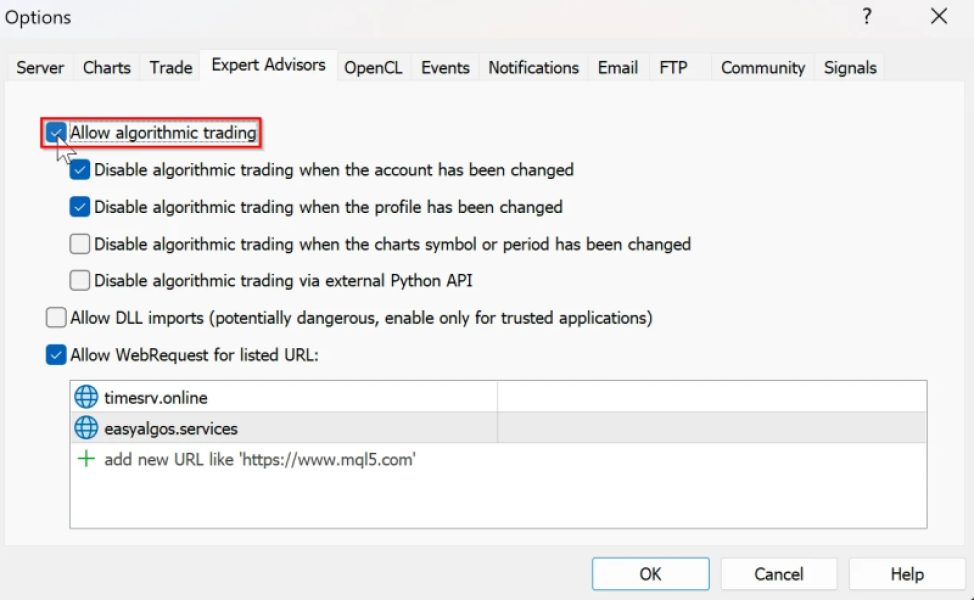
4. Allow algorithmic trading
- Make sure ‘Allow algorithmic trading is enabled by heading over to ‘Tools’ > ‘Options’ >’ Expert Advisors’, check ‘Allow algorithmic trading’ and then click on ‘Ok’
5. Load & configure your Expert Advisor (EA)
- Drag and drop your selected Expert Advisor (EA) onto your trading chart.
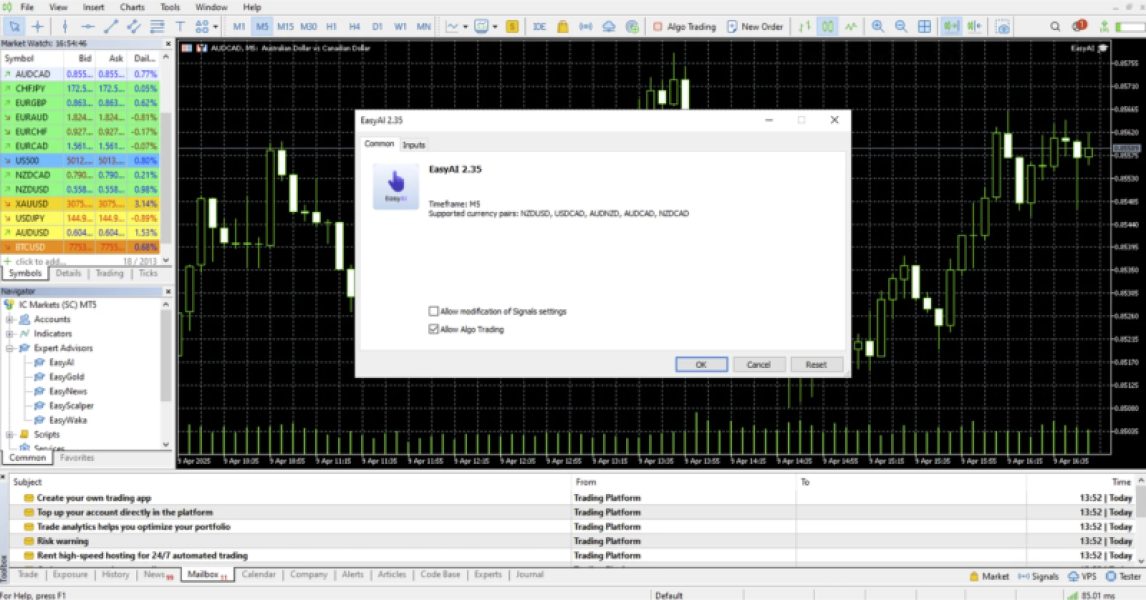
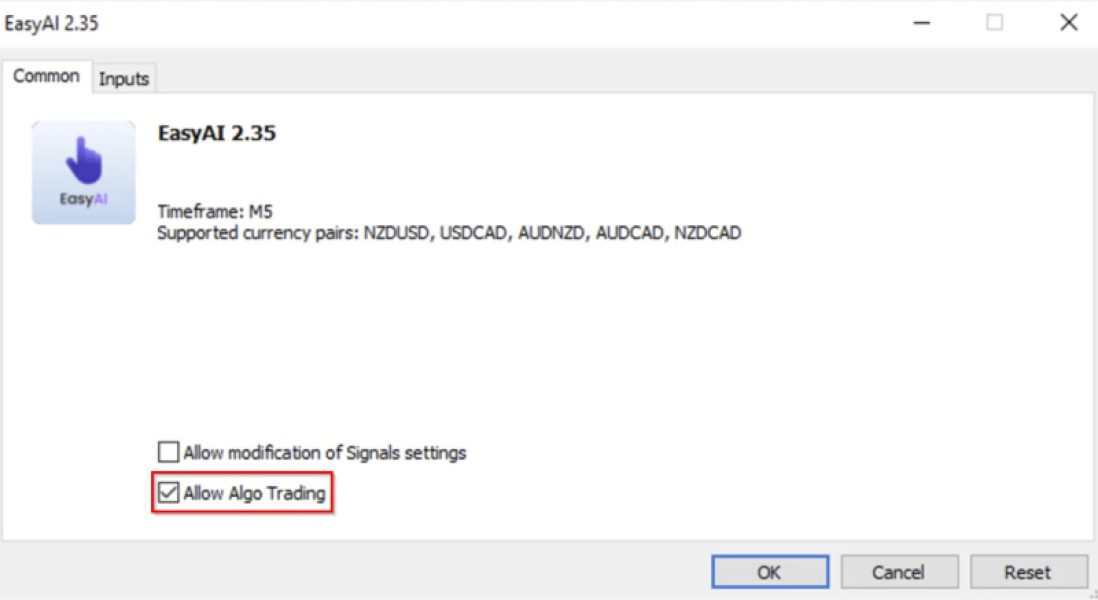
If the ‘Allow algo trading’ box isn’t checked, your EA will display the error: “MQL: trading not allowed!” in the interface.
To resolve this, simply drag the EA back onto your chart and make sure algorithmic trading is enabled. If the issue continues, refer to our article: “How to fix the ‘MQL: trading not allowed!’ error.”
- Configure the EA parameters according to your preferred risk settings and trading strategy.
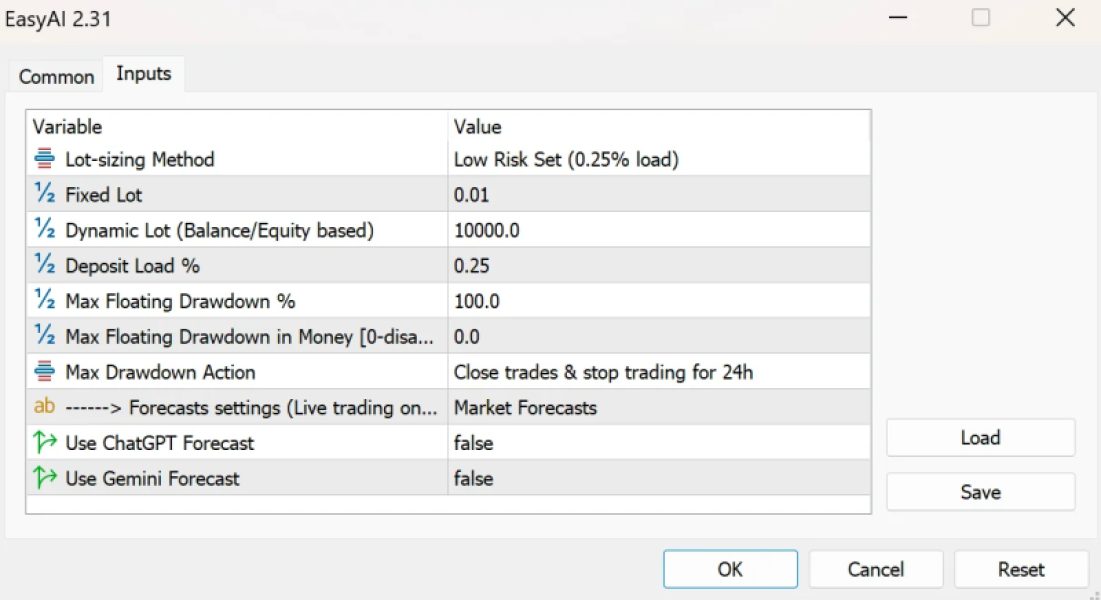
6. Let the EA auto-trade
- Once everything is set up, the EA will begin executing trades automatically, following its programmed logic.
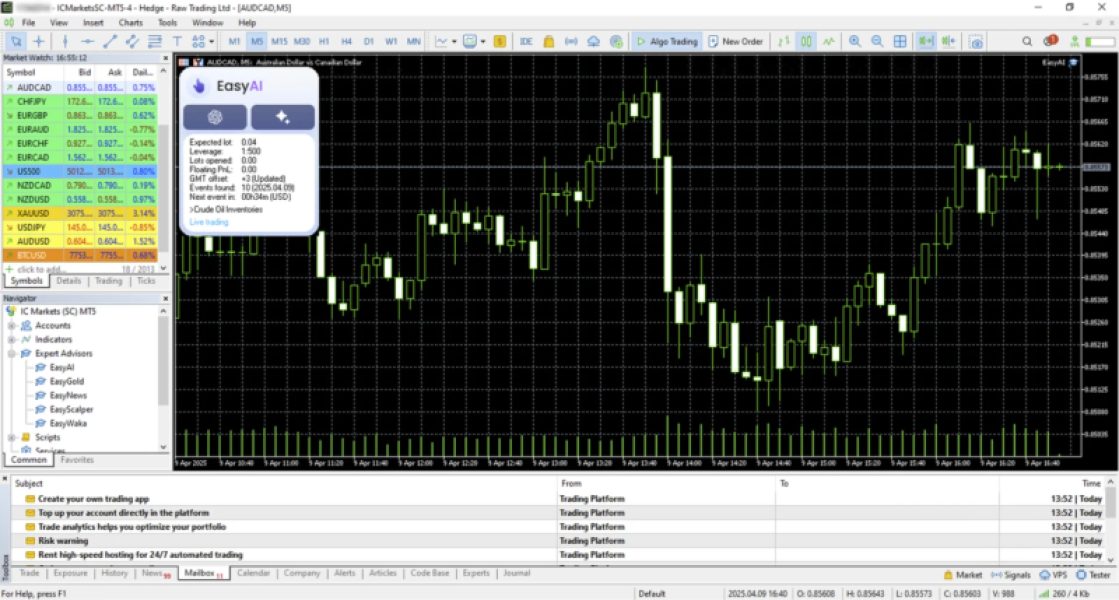
To confirm everything is running correctly, look for the light-blue “Live trading” label in your EA’s graphical interface.
If you see a red error message instead, head over to the ‘Common Errors’ section in this Help Center and search for your specific error.
And of course, feel free to reach out to us anytime at support@easyalgos.ai if you have any questions or need assistance.