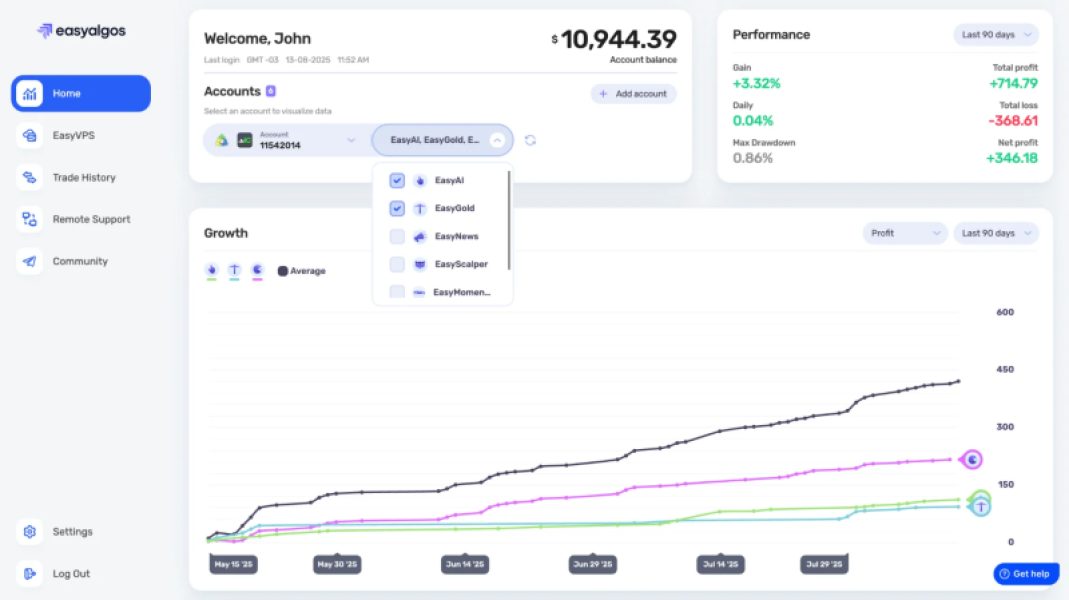
How to set up analytics & trades history
Once you've gained access to your user dashboard, you can connect your MetaTrader 5 accounts to the Analytics & Trades History feature.
Here’s a step-by-step tutorial video to help you:

To access analytics & trading history for your MetaTrader 5 accounts, follow these simple steps:
1. Go to the ‘Home’ tab in your EasyAlgos AI user dashboard.
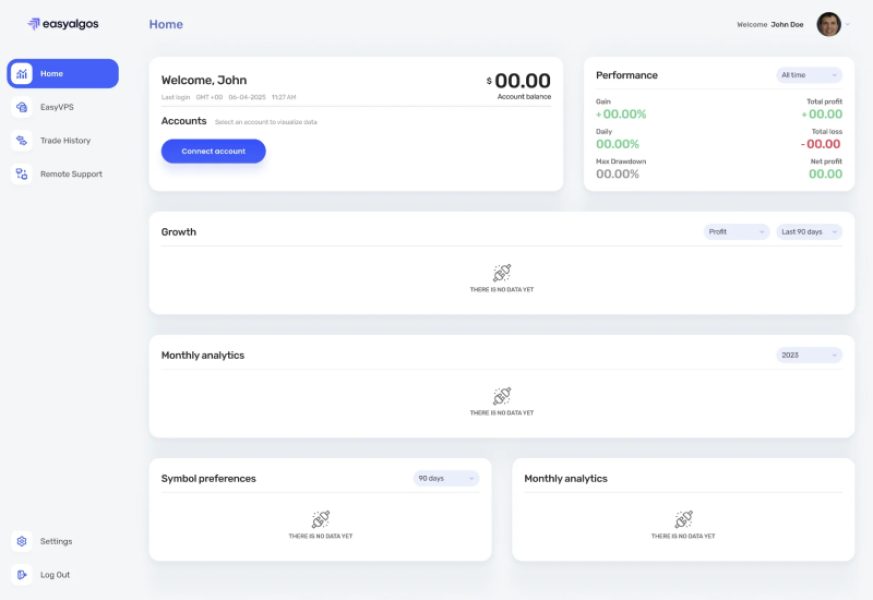
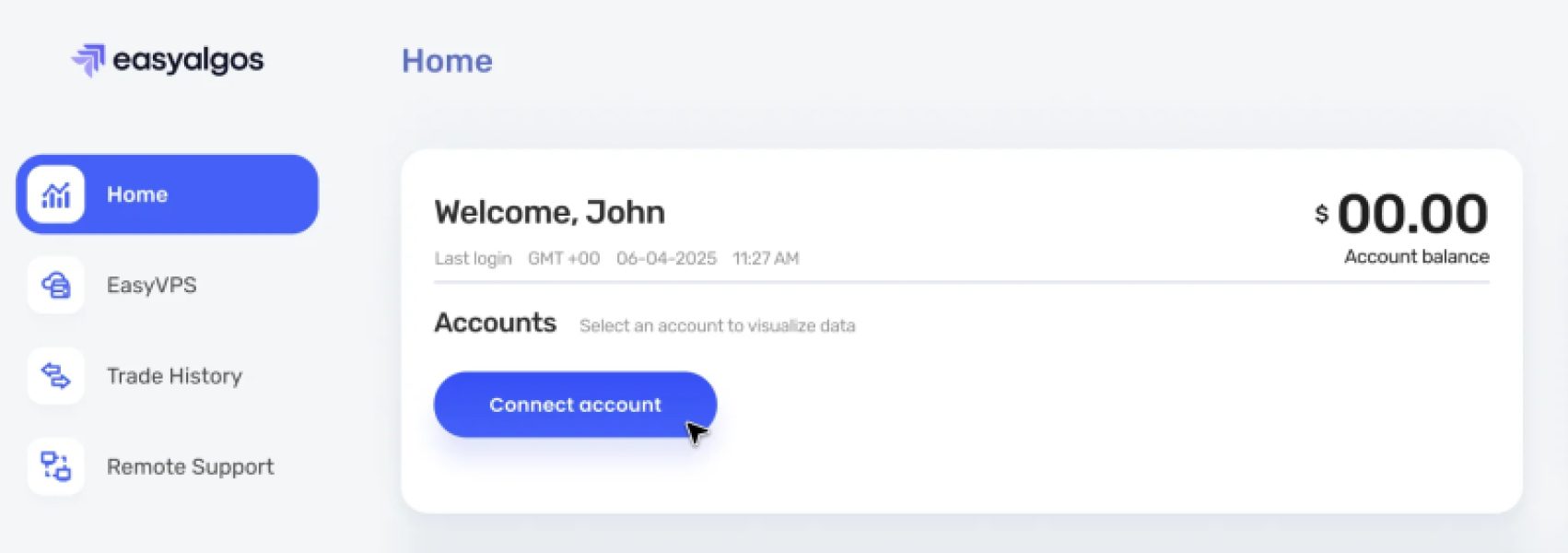
2. Click the ‘Connect Account’ button.
3. A window will pop up where you'll see a list of your synchronized broker MT5 accounts.
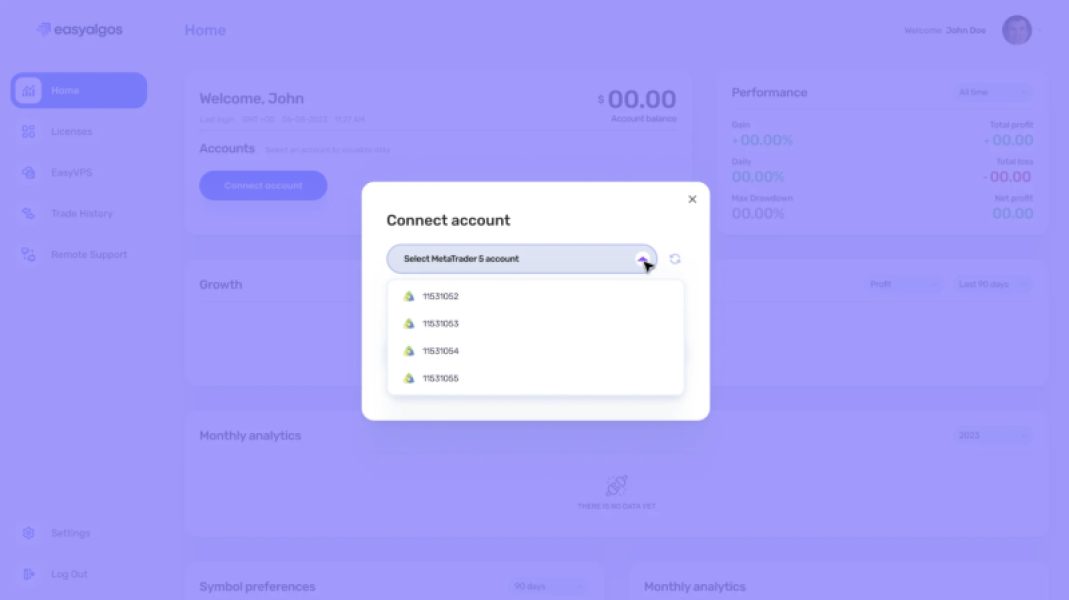
4. Select the account you want to connect and enter your investor password (Not sure how to get your investor password? Check this article)
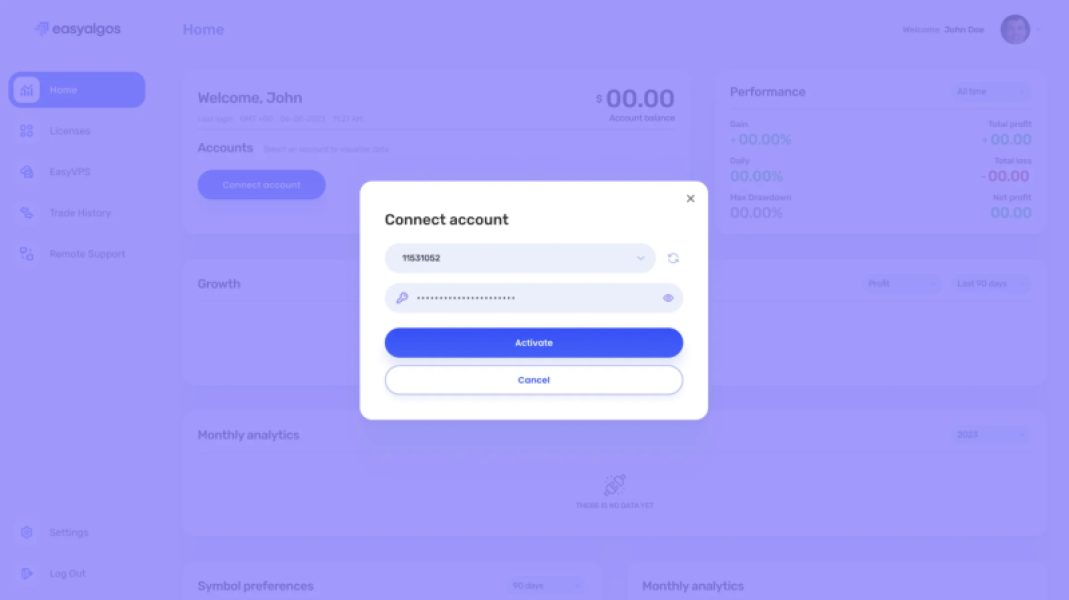
5. If the password is correct, the account will be connected.
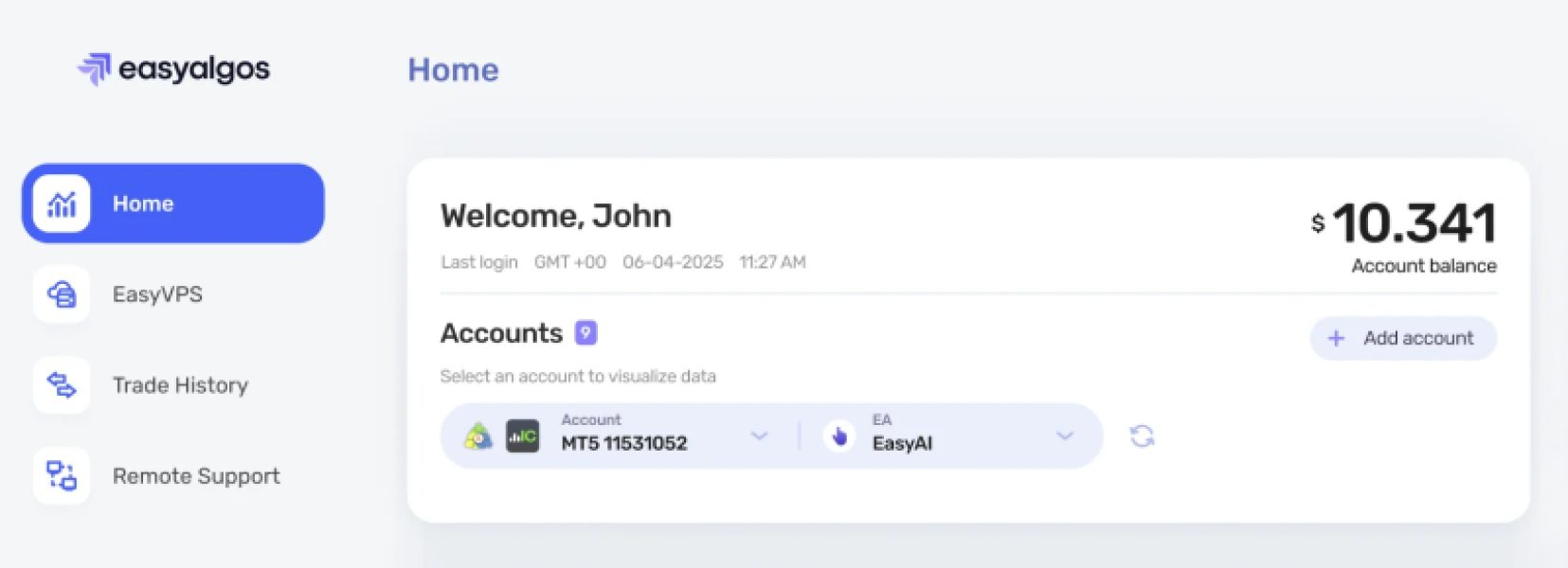
6. Once connected, it will appear in your ‘Accounts List’, and you’ll be able to:
- View trade analytics
- Filter by Expert Advisor
- Filter by time frames
7. Selecting multiple Expert Advisors allows you to view their combined performance, enabling you to:
- Compare the profit curves of all your active EAs
- Instantly calculate combined stats, trades, and symbols
- Toggle EAs on/off directly from the chart
- Build your ideal portfolio view in seconds